Talanoa Review - A Local Email Client That Reads Like a Chat
We've tested Talanoa, a local email client for macOS, Windows and Linux that groups your mail by person, shows threads as chat bubbles, and runs its AI on your own computer.
Open any long email thread and count how much of the screen is actually new. There's the reply, sure, but under it sits the previous message quoted in full, then the one before that, then three signatures, a legal disclaimer, and a "Sent from my iPhone". Email was supposed to be a conversation between people, and somewhere along the way it became an archive of itself.
Talanoa starts from that frustration. It's a desktop email client that sorts your mail by the person who sent it, strips the quotes and signatures out of each message, and shows what's left as chat bubbles. On top of that it turns emails into tasks on a Kanban board, and it runs its AI assistant on your own machine rather than in someone's cloud. The name means "discussion" in Fijian, which tells you the intent.
John, the solo founder behind it, asked me to focus on the heart of the product: the people-first conversation view, turning emails into tasks, the private AI ("ask your inbox anything"), and the fact that everything stays on your computer. So I installed it on my Mac, connected my real personal mailbox, and used it for a morning. Here's how it went.
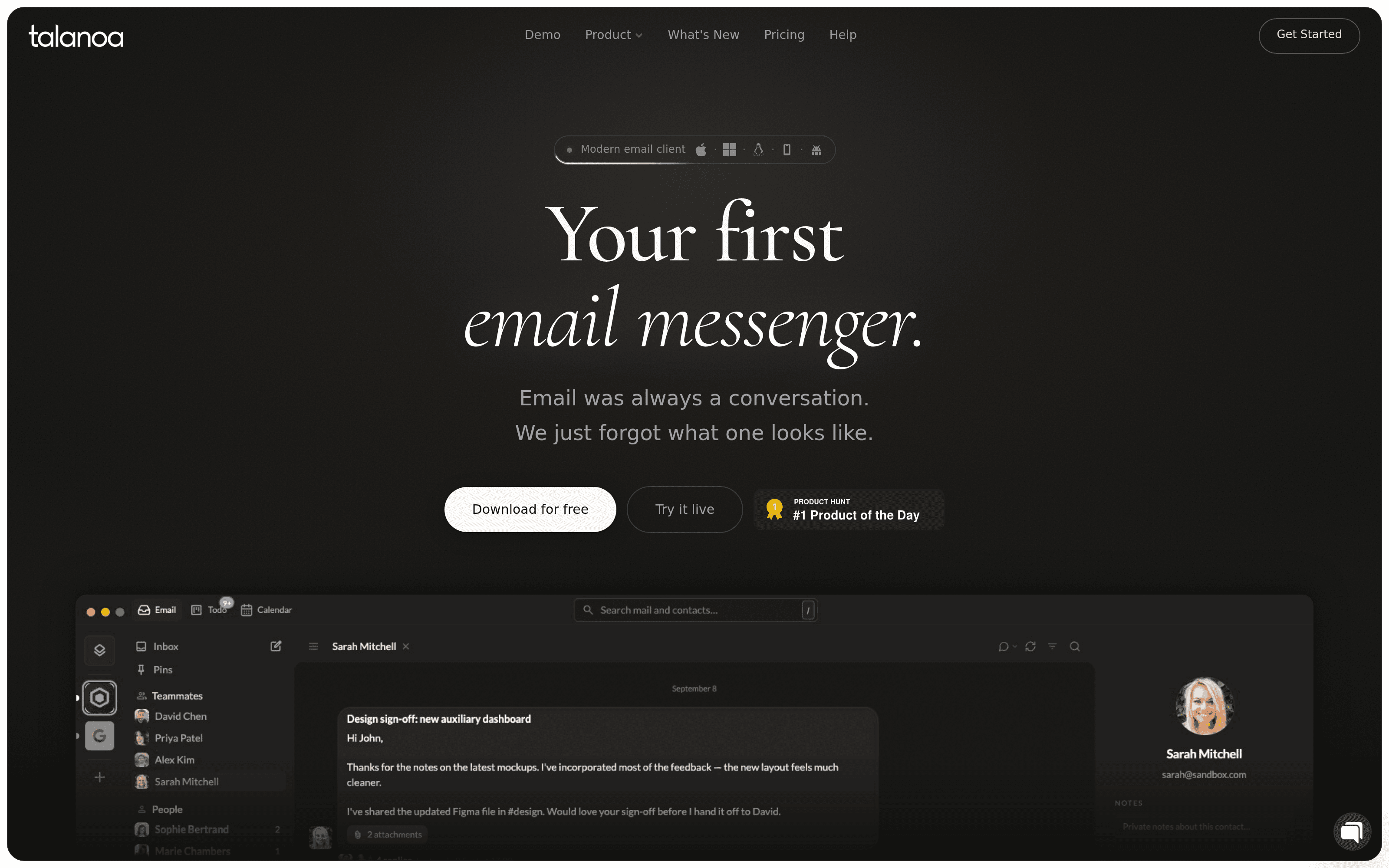
The Talanoa home page: "Your first email messenger."
Talanoa is a native desktop app (version 1.0.1 when I tested it) for macOS 12 and later on both Apple Silicon and Intel, Windows 10 and later on x64, and Linux through .deb and .rpm packages. A Windows on Arm build is listed as coming soon. The macOS app takes 392 MB on disk.
The first screen asks you to connect an account, with three buttons: Google, Microsoft, or any other provider. My personal mailbox is on Proton Mail, which is a good stress test because Proton doesn't speak IMAP on its own. Talanoa recognised the address straight away, labelled it "ProtonMail, detected automatically", and showed a warning explaining that I needed Proton Mail Bridge running locally. I switched to manual settings, pasted Bridge's local IMAP and SMTP details, and the account connected on the first try. Gmail, Outlook, iCloud, Yahoo and any IMAP mailbox are supported, so most people will take the one-click route instead.
Then comes an onboarding of eleven short steps, and it's one of the most carefully designed I've gone through in a while. It opens by giving you the Pro plan free for 14 days, with no card asked for. Then it walks you through the theme, the way your inbox is sorted (a "Classic list" or a "Smart inbox" that groups unread mail by colleagues and people), the layout (full width with a floating reader, or a split view), notifications, and a few privacy defaults. Remote images are set to "ask before showing" out of the box, so tracking pixels don't fire when you open a newsletter.
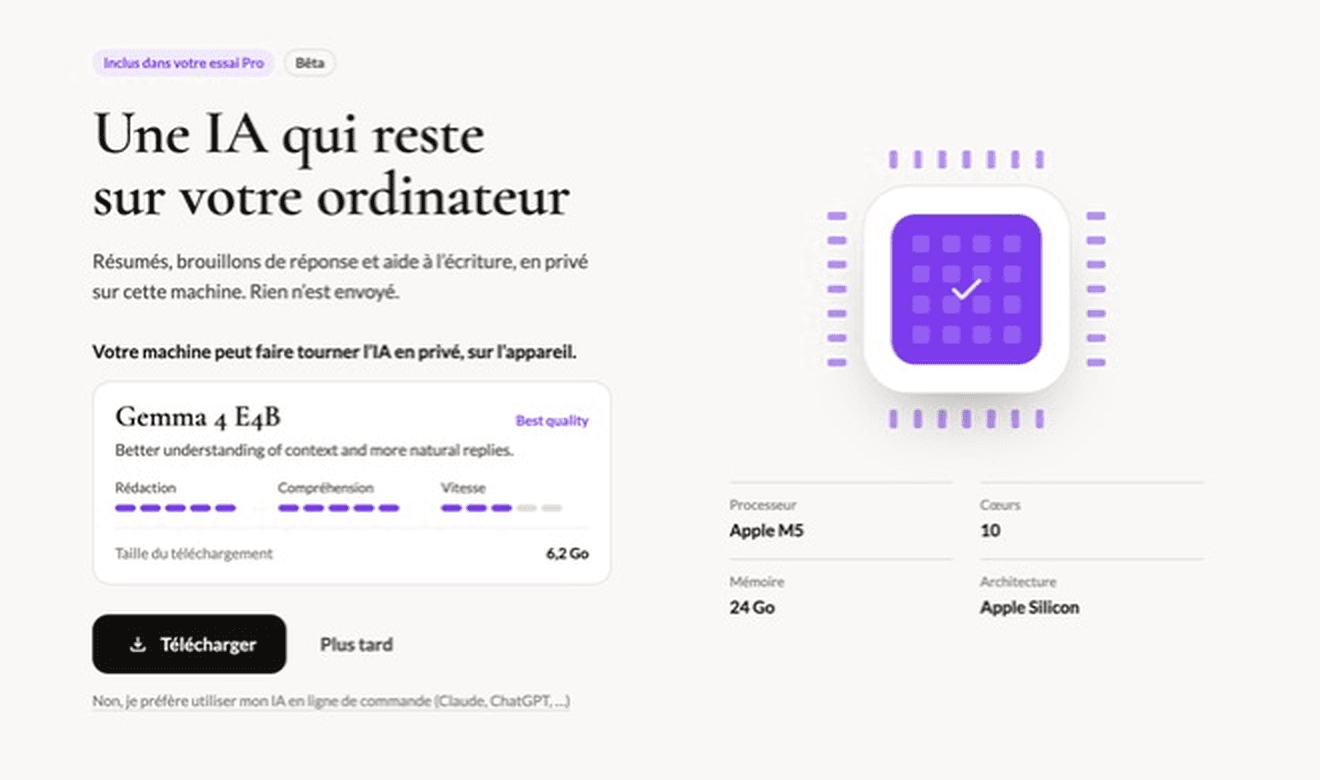
The step that impressed me most was the AI one. Talanoa inspected my machine, listed it plainly (Apple M5, 10 cores, 24 GB of memory, Apple Silicon), concluded it could run AI locally, and recommended a specific model: Gemma 4 E4B, a 6.2 GB download. There's also a discreet link for people who would rather plug in the AI command-line tool they already use, such as Claude or ChatGPT.
The private AI step of the onboarding detects the processor, core count and memory, then recommends Gemma 4 E4B. The interface was in French here because it follows the system language.
A small note on language: Talanoa follows your system language, and it's available in English and French. My Mac is in French, so the onboarding was too. I switched the interface to English in the settings afterwards, which applied instantly, so every screenshot from here on is in English.
Once you're in, the sidebar is what changes your habits. Instead of a list of messages, you get a list of senders, split into two groups: People at the top and Notifications below. Receipts, product updates and newsletters drop into Notifications, while the people who actually write to you stay up top. Click a name and you see everything you've exchanged with that person, in one place, whatever the subject line.
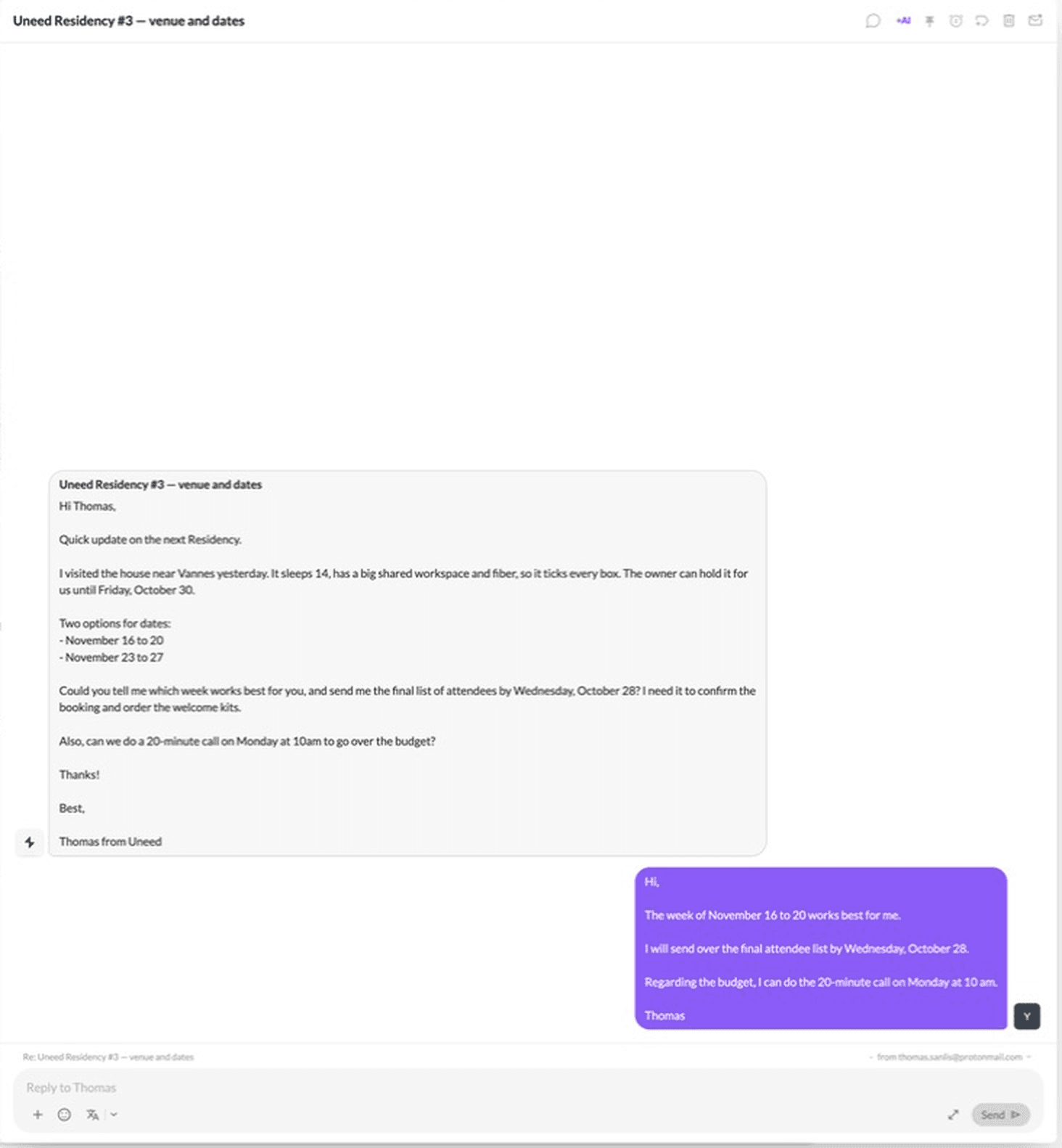
Open a conversation and the "Modern chat" style kicks in. Their messages sit in grey bubbles on the left, yours in purple on the right, with date separators like "Yesterday" between them. The bit that makes it work is the cleaning: when I replied to an email, my bubble showed only what I had written, with no quoted copy of the original piled underneath. Talanoa says it hides signatures and disclaimers the same way, though a sign-off typed into the body, like "Best, Thomas", naturally stays. Long emails are cut with a "See more" link, so a thread full of updates stays readable at a glance. If you prefer the old way, a "How messages look" switch takes you back to "Classic", one message stacked after another.
A conversation in the Modern chat style: the incoming email in grey, my reply in purple, with the quoted original stripped out.
On the right of each person sits a contact panel, and it's more useful than it looks. There's a field for private notes about the contact, and a set of bulk actions that work on the whole relationship at once: "Send an email", "Archive all", "Trash all", "Unsubscribe & block", "Move to section", and a shortcut to every attachment that person ever sent you. Hover any message and a small toolbar appears with reply, forward, an AI action, "add to todo", "add note", and a menu for snooze, archive, labels and sharing.
The automatic sorting isn't perfect. OpenPanel and Bing Webmaster Tools, both automated senders, landed in People on my account, and they need moving by hand. It's a small fix, but you'll do a bit of tidying during the first days.
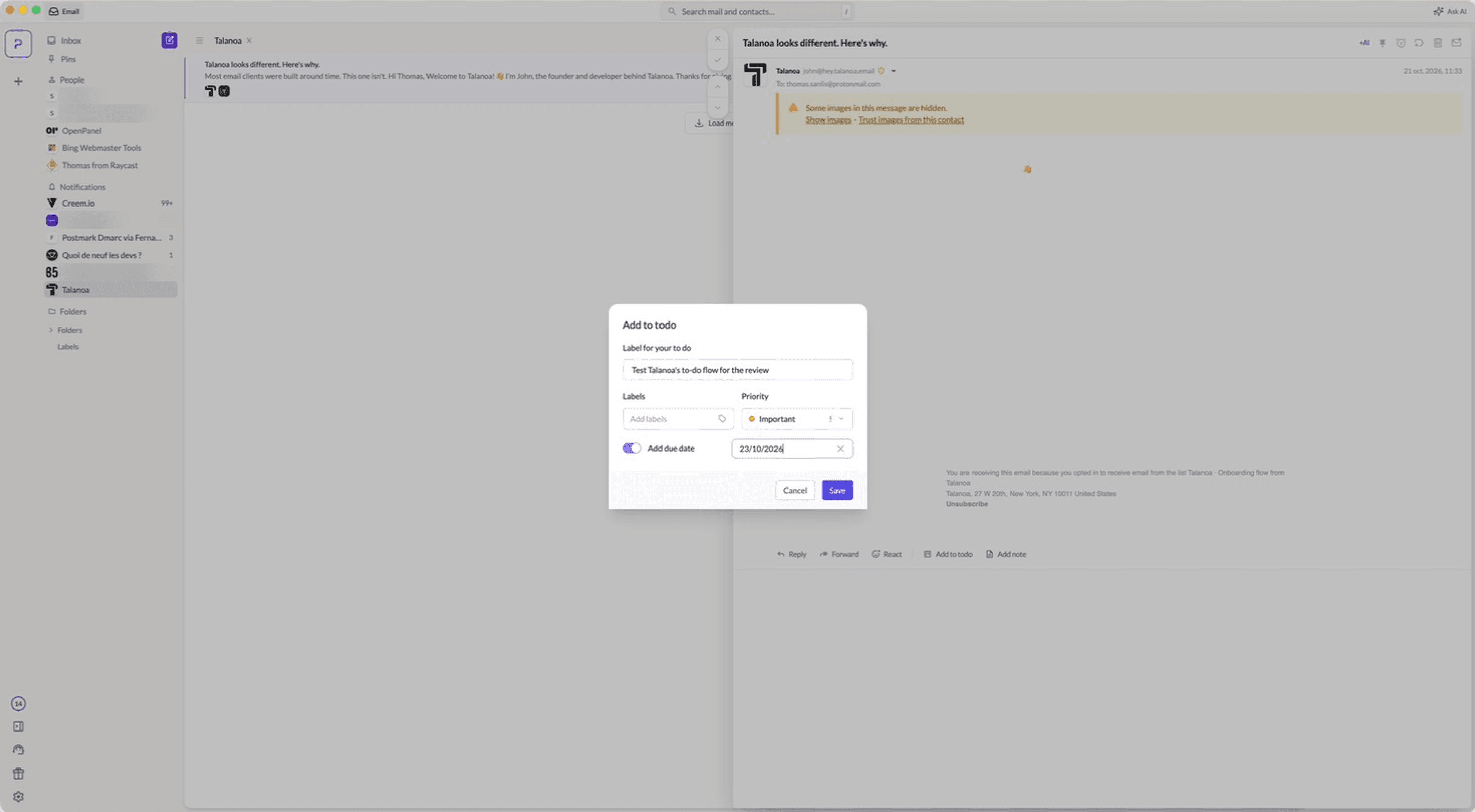
Talanoa's motto for this part is "read doesn't mean done", and the feature backs it up. Any email has an "Add to todo" action that opens a small form: a label for the task (pre-filled with the subject line), labels, a priority ("No priority", "Important" or "Urgent"), and an optional due date. I gave mine a new label, set it to Important and picked a date two days out from the little calendar.
The Add to todo form, opened from an email: label, labels, priority and due date.
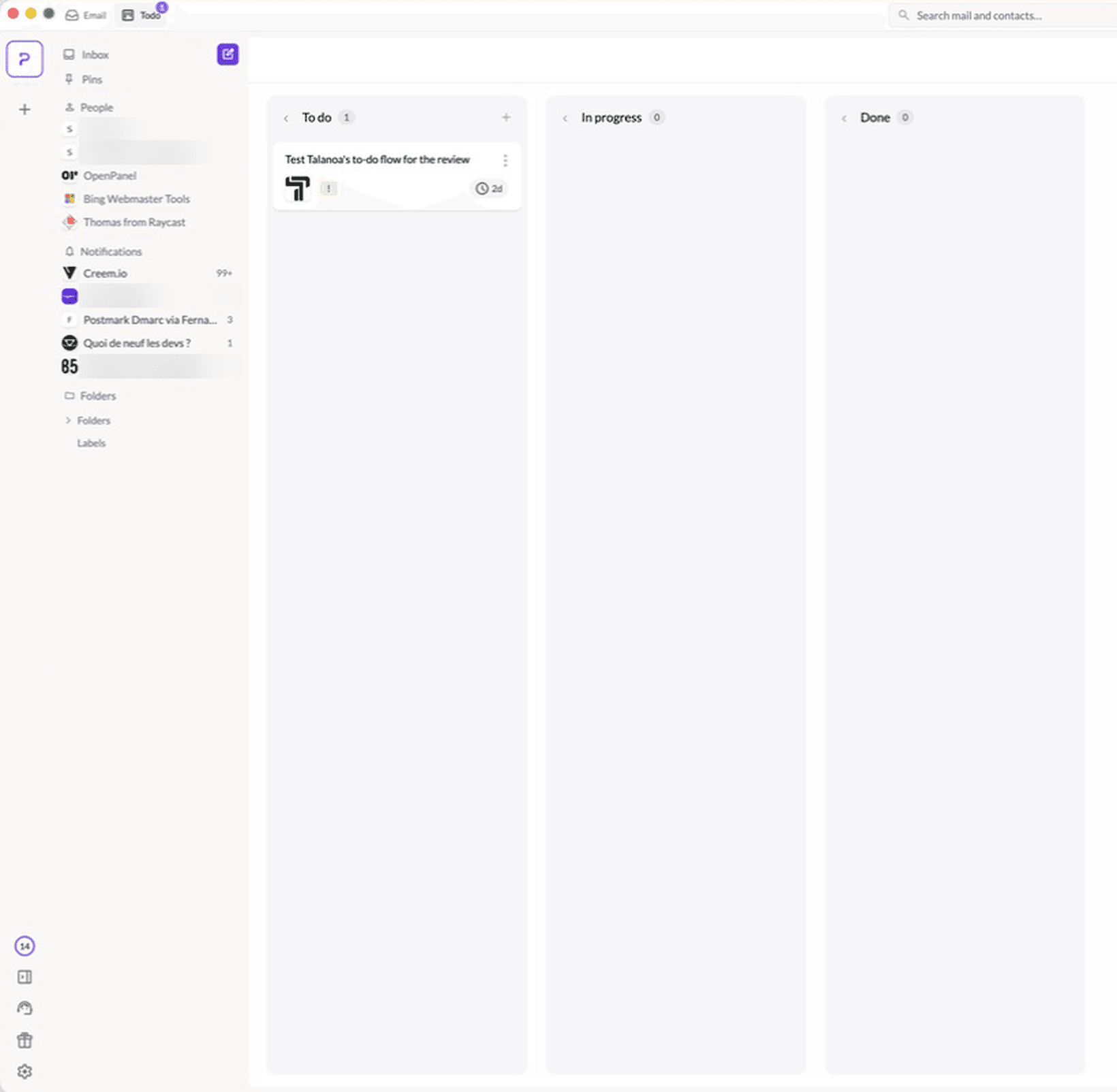
Saved tasks land in a Todo tab next to Email, laid out as a Kanban board with three columns: To do, In progress and Done. Each card shows the sender's avatar, the priority flag and a countdown ("2d"). I dragged my card from To do to In progress without any fuss, and clicking it reopened the original email in a side drawer. That link back to the source is the whole point: you never have to search for "that email the task was about".
The Todo board after dragging the task to In progress. The card keeps the sender's avatar, the priority and the due date.
If you keep the Tasks widget on, your open tasks also show up on the inbox home screen next to a Scratchpad for quick notes. It's not a project management tool, and it doesn't try to be one. It's a way to stop using "mark as unread" as a to-do list, and for that it works well.
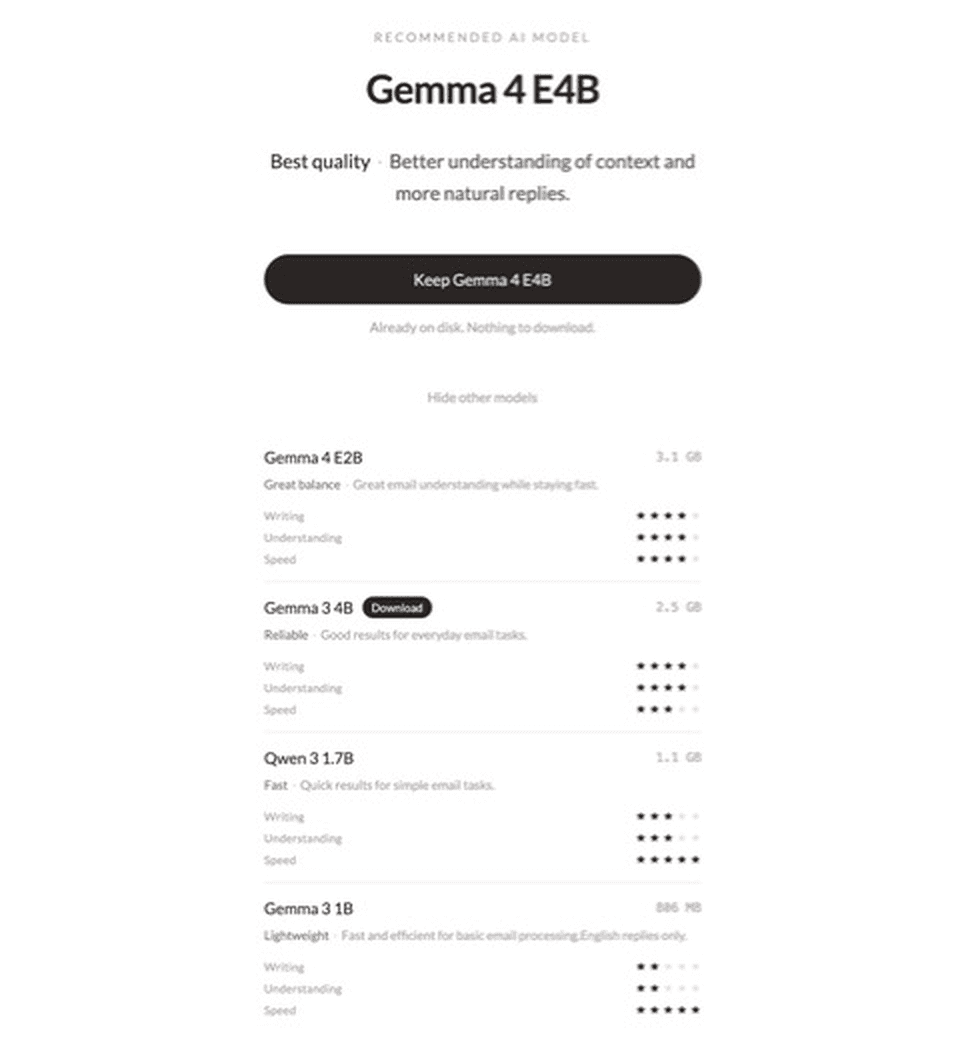
This is the part I was most curious about, because "AI in your inbox" usually means sending your inbox to someone's servers. Here the model really is on your machine. The 6.2 GB Gemma model downloaded in about three minutes on my connection, in the background while I finished the onboarding. In the AI settings you can see exactly what's installed, and switch to a lighter model if your computer is less powerful: Gemma 4 E2B (3.1 GB), Gemma 3 4B (2.5 GB), Qwen 3 1.7B (1.1 GB) or Gemma 3 1B (806 MB), each rated for writing, understanding and speed.
The AI model picker: the recommended Gemma 4 E4B is already on disk, with four lighter models listed below it.
The flagship feature is Ask AI, a chat panel where you ask questions about your mail in plain language. It needs a second, smaller model to build a local search index (BGE-M3, 635 MB), which indexes your emails, attachments and contacts on your computer. By default it only indexes "Emails from people", and you can add notifications if you want. Indexing is designed to stay out of your way: it pauses while you're actively using Talanoa and runs when you step away, with an honest warning that your processor will be busy for ten minutes or so. On my account it was done after about fifteen minutes away from the app.
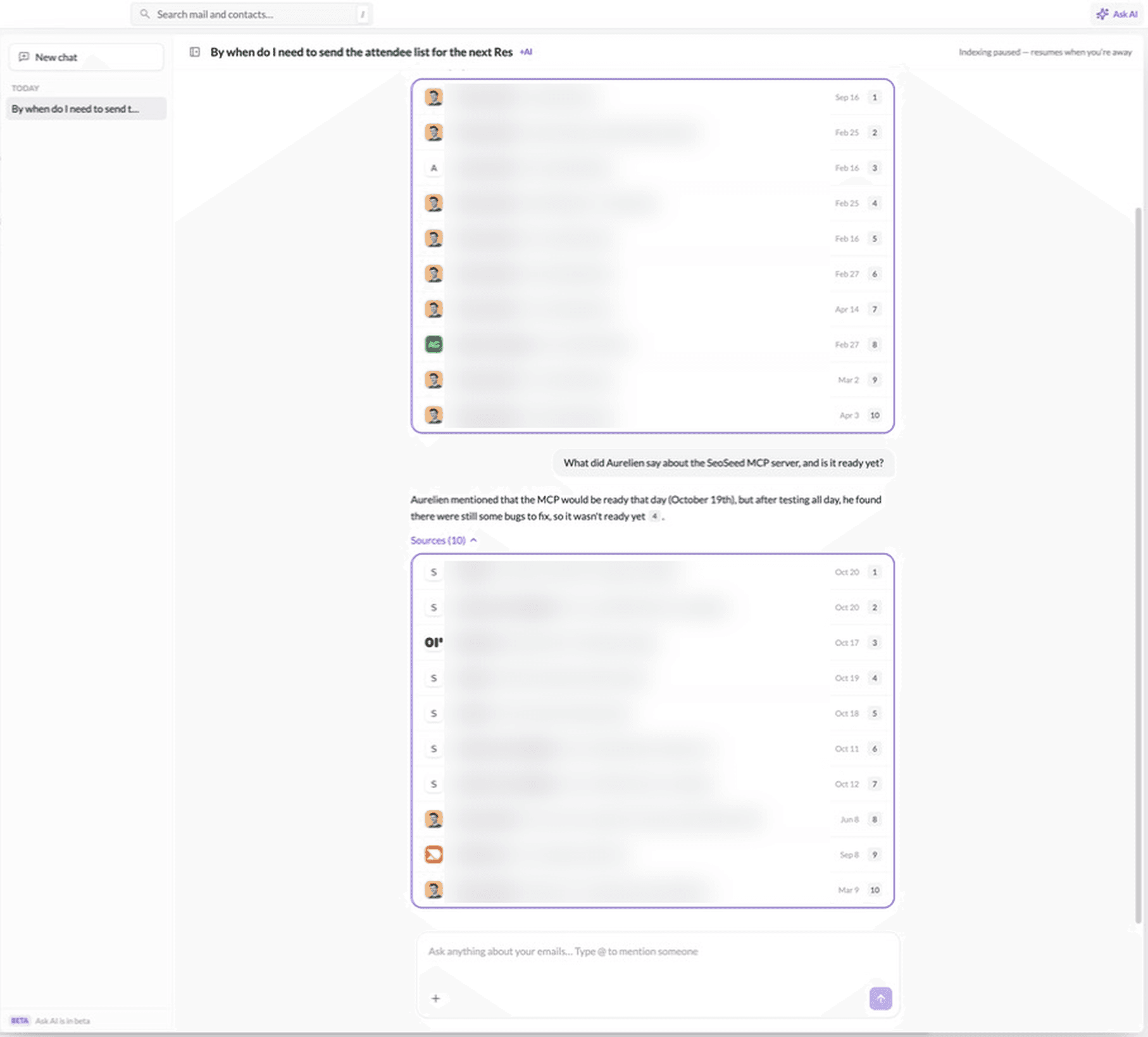
I asked it about a work thread written in French, in English: "What did Aurelien say about the SeoSeed MCP server, and is it ready yet?" The answer came back in under twenty seconds, in English, with a numbered citation and a list of the ten emails it had looked at. It quoted the right email correctly (the server wasn't ready because of last-minute bugs), but that email was from October 19, and a newer one from October 20, listed as its first source, explained how to connect to the server. So it found the right thread and then drew its conclusion from the older message. Because every answer shows its sources, I caught it in two seconds, but it's a good reminder to click through when the question is about the latest state of something.
Ask AI answering a question about a thread, with a numbered citation and its ten sources. I've blurred the senders and subjects of my real emails.
My first question had come back empty: I asked about an email that had arrived a few minutes earlier, and the AI said it couldn't find it. That's the flip side of indexing only while you're away. New mail isn't searchable by the AI until the next idle moment, so Ask AI is a tool for your history rather than for what landed five minutes ago. Plain search, on the other hand, is instant: typing in the search bar returns matching contacts and emails as you type, with the matches highlighted, and a "Search on the email server" fallback for anything not synced yet.
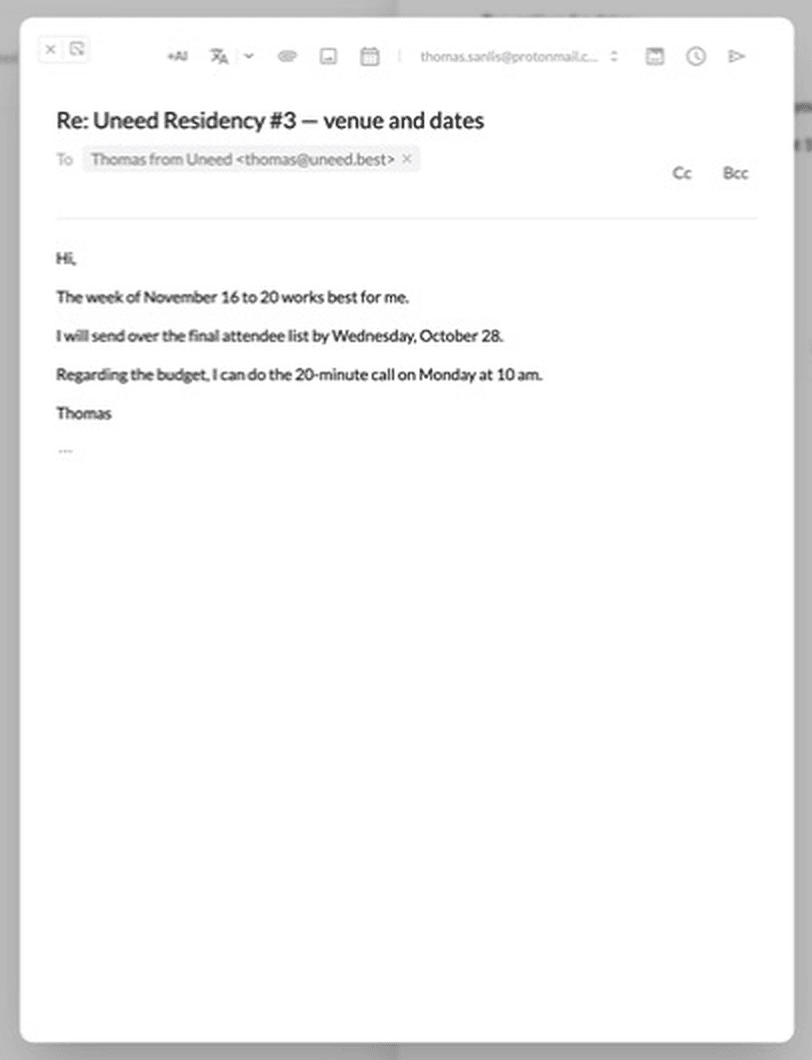
The other everyday AI feature is AI Reply. To test it on something I could show, I had a short email sent to my personal address from my Uneed one, asking three things: which of two weeks worked for an event, whether I could send a list of attendees by October 28, and whether I was free for a call on Monday at 10am. One click on "AI Reply", about fifteen seconds of "Drafting…", and a draft opened in the composer answering all three points: "The week of November 16 to 20 works best for me", "I will send over the final attendee list by Wednesday, October 28", "I can do the 20-minute call on Monday at 10 am". It picked the week for me, which you'd obviously check before sending, but it didn't miss a single question.
An AI Reply draft written locally by Gemma 4 E4B, answering the three questions from the email.
The tone was generic, and that's expected: the settings showed "Writing style: Not set". Talanoa can learn your style from your last ten sent emails, still on your computer, and translate emails you receive or write. I didn't try either. When I hit send, a toast gave me three seconds to undo, which I appreciate in any mail client, AI or not.
Privacy is the thread that runs through every feature, so I checked what I could. Talanoa's data lives in a folder on your machine, and after my morning of use it held 6.4 GB of AI models and 1.9 GB of local mailbox data. Your mail is downloaded and stored locally, which is also what lets Talanoa promise that you can read, search and reply without a connection, with outgoing emails queued until you're back online. I didn't test the offline mode itself.
While the app was running, the only connections I saw were to my mail server (through Bridge) and two HTTPS connections to content delivery networks. I can't see what those carry. Talanoa's security page says it doesn't collect, host or process your email data, and that it has passed Google's CASA Tier 2 assessment, audited by TAC Security, which is required for apps that access Gmail. Those are their claims, but the architecture I saw matches them: the AI and the index were on my disk, not in an account somewhere.
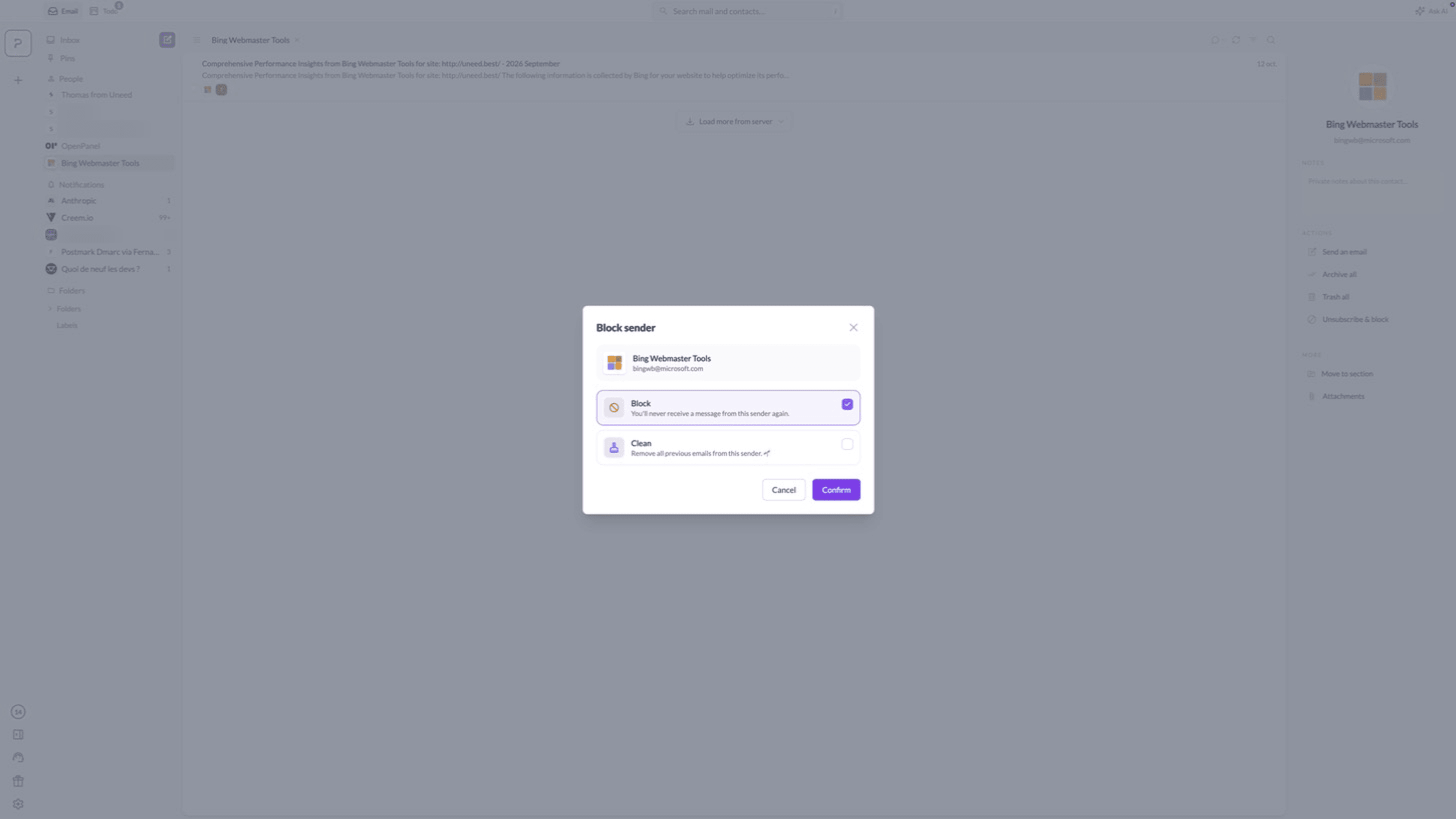
The last feature I tested was "Unsubscribe & block", available from any sender's panel. On Bing Webmaster Tools it opened a "Block sender" dialog with two checkboxes: Block ("You'll never receive a message from this sender again"), ticked by default, and Clean ("Remove all previous emails from this sender"), unticked. I kept only Block, confirmed, and got a cheerful "Done 👍" in return.
The Block sender dialog for Bing Webmaster Tools, with the optional Clean checkbox to delete past emails.
There's also a Subscriptions view, reachable from the command palette, that lists every newsletter-style sender in your mailbox with the number of emails each one sent you. On my account it found 37. It's the fastest way I've seen to see what's cluttering an inbox and get rid of it in one sitting.
Command palette: ⌘K opens everything (inbox, labels, sent, drafts, snoozed, scheduled, subscriptions, settings) from the keyboard, and a second ⌘K palette inside the composer handles sending, scheduling, templates and attachments.
Multiple accounts: according to Talanoa, every account merges into one chronological inbox. I only connected one, so I didn't see it in action.
Calendar: you can connect Google Calendar or Outlook Calendar to answer invitations from the email, share a booking link, and see your week next to your mail. Those are the only two options, so I couldn't test it with my Proton calendar.
Scheduled send and snooze: both are built into the composer and the message menu.
Rules, templates, signatures, labels and custom sections: the settings cover everything you'd expect from a full mail client.
Mobile app: iPhone (through TestFlight) and Android (through an invitation on Google Play) are in beta, included with Pro, and local-first like the desktop app.
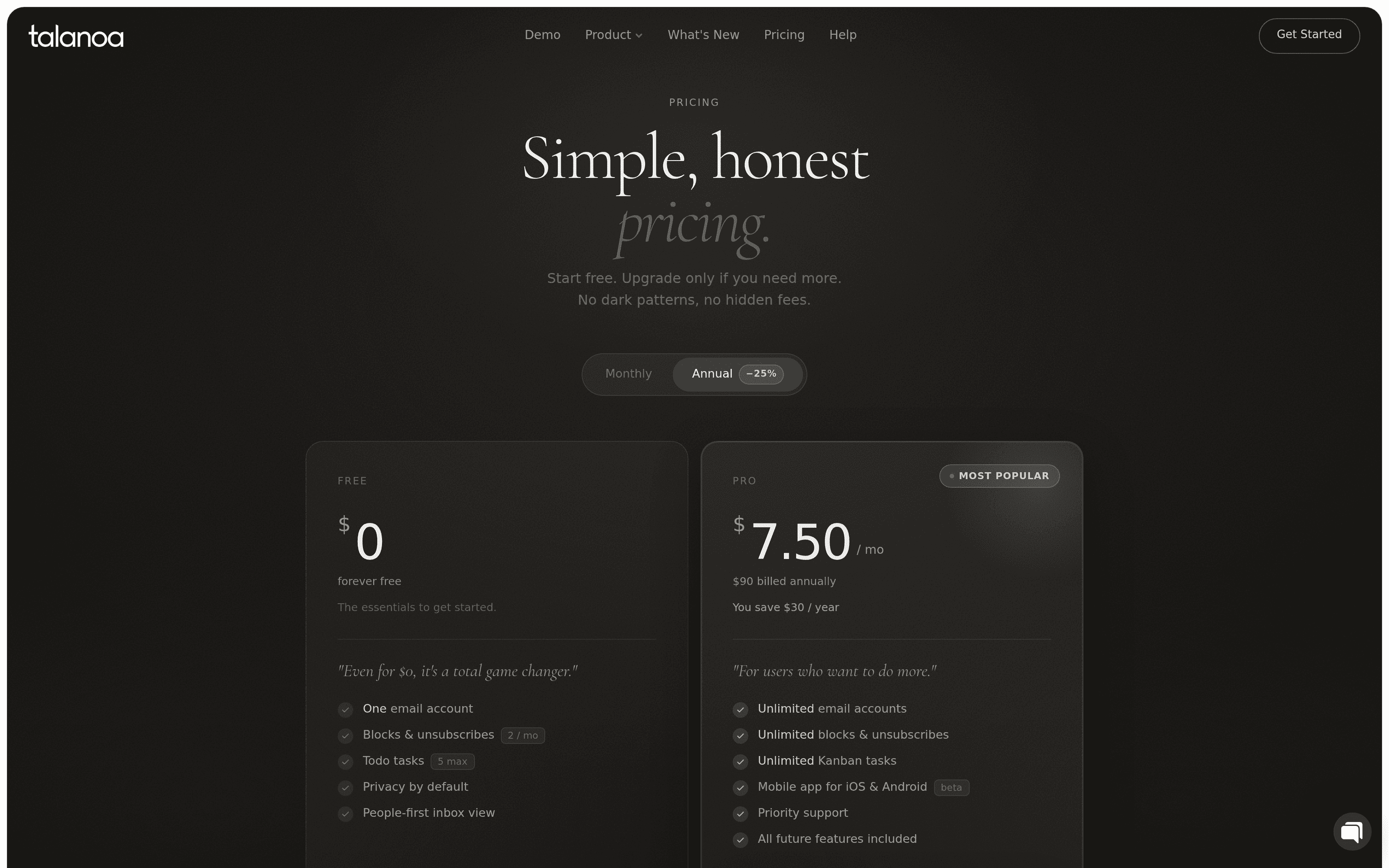
Talanoa has a free plan and a single paid plan, Pro. Every new account starts with a 14-day Pro trial without a credit card, and if you don't upgrade you simply drop to the free plan. Prices are in US dollars.
Free
Pro
Price
$0, forever
$10 / month, or $7.50 / month billed annually ($90)
Email accounts
1
Unlimited
Blocks & unsubscribes
2 per month
Unlimited
Tasks
5
Unlimited Kanban tasks, custom Todo columns
Custom sections
1
Unlimited
Private AI & Ask AI
No
Yes
Calendar
No
Yes
Mobile app (beta)
No
Yes
The pricing page is a bit quiet about one thing the in-app comparison makes clear: the private AI, Ask AI and the calendar are Pro features. So the free plan is a genuinely usable people-first inbox for a single account, but the AI that's shown all over the website requires Pro.
The Talanoa pricing page, set to annual billing: Pro at $7.50 a month, billed $90 a year.
Talanoa offers Uneed readers 20% off the first year with the code UNEED20 😊
Founders, freelancers and consultants whose inbox is mostly real conversations with clients, partners and suppliers.
Anyone who uses "mark as unread" as a to-do list and wants tasks that stay linked to the email they came from.
Privacy-conscious people who want AI help on their mail without uploading it, including Proton users willing to run Bridge.
People with several mailboxes who want them in one inbox on macOS, Windows or Linux.
If you process hundreds of automated emails a day and live in rules and filters, the person-centric model will matter less to you, and Ask AI only indexes people's emails by default. And if your computer is older or short on memory, the best local model won't be an option: you'll get one of the lighter ones, and the quality of answers and drafts will drop with it.
If you're comparing it with the usual names, the difference is structural. HEY is a whole email service with its own address, so you have to move your mail to it. Superhuman and Spark are polished clients that sit on top of your existing account but rely on their own cloud for much of what they do. Talanoa keeps your current mailboxes and does everything, AI included, on your computer.
What I liked most about Talanoa is that the people-first idea isn't a coat of paint. The sidebar, the chat view that removes quotes and signatures, the contact panel with its bulk actions and notes, and tasks that point back to their email all serve the same idea: you deal with people, not message lists. The local AI is the other strong point. It detects your hardware, picks a model, keeps everything on your disk, and still drafts a usable reply in fifteen seconds. It's a young product (version 1.0.1), and a few rough edges show, but it's coherent in a way many mail clients aren't.
If your inbox is mostly conversations, Talanoa is worth a download: the trial unlocks everything for two weeks.
What I liked:
The Modern chat view really does strip quotes and signatures, so a thread reads like a conversation
People and Notifications are separated automatically, and the contact panel acts on a whole relationship at once
Turning an email into a task takes a few seconds, and the task always links back to the email
The AI runs on your computer, with a hardware check and a choice of five models
AI Reply answered every question in my test email
Ask AI cites its sources, so you can check an answer immediately
Remote images are blocked by default, and blocking a sender (with an optional clean-up) is one dialog
A 14-day Pro trial with no card, and a free plan that stays usable
Things to keep in mind:
The AI, Ask AI and the calendar are Pro features, which the pricing page doesn't spell out
Ask AI only sees what has been indexed, and indexing waits until you step away, so very recent mail may be missed
On my test, Ask AI drew its answer from an older email in a thread rather than the newest one
The local AI is heavy: 6.2 GB for the recommended model and 635 MB for the search index
Some automated senders get sorted into People and need moving by hand
The calendar only connects to Google Calendar or Outlook Calendar
The interface is available in English and French only, and a couple of settings labels stayed in French after I switched
Download Talanoa and give your inbox a conversation view.
BlogSEO Review - SEO Automation That Writes, Benchmarks and Builds Links
We've tested BlogSEO, an SEO automation tool that researches keywords, writes and publishes blog articles, trades backlinks through a non-reciprocal network and lets Claude or ChatGPT run it over MCP.
Reviews
ScreenKite Review - The Mac Screen Recorder Your AI Agent Can Edit
We've tested ScreenKite, a native Mac screen recorder and video editor that hands its timeline to your own AI agent, with auto zoom, 3D device mockups and on-device captions.
Reviews
Superblog Review - A Blogging Platform Built for Google and ChatGPT
We've tested Superblog, a hosted blogging platform for SaaS teams that handles technical SEO, AI search, subdirectory hosting and built-in auto-translation, with an MCP server for AI agents.
Reviews
MakeForms Review - A HIPAA Form Builder That Also Signs and Schedules
We've tested MakeForms, a HIPAA-ready form builder that bundles OTP verification, per-region data storage, e-signatures, document generation and scheduling.
We use cookies
Essential and analytics cookies keep Uneed running and help us understand usage. Marketing and affiliate cookies are optional. Privacy policy